

Decorative Flower
Her Realm, Personal website and blog of Cole
Dec 18

WordPress Database: The Basics

Once upon a time, everything on your site actually existed in hard copy in PHP or HTML files. This isn’t so with WordPress. The script stores everything in a database. Every post, comment, link, option, widget setting, plugin setting and everything else that’s not your theme is store in the database. Whenever a visitor is on your site viewing a category, WordPress retrieves the relevant data from the database. Without a database, you have no blog.

Accessing the WordPress Database

To view your database, you can use a tool called phpMyAdmin, which you’ll find when you log in to your host’s control panel — not your WordPress dashboard. phpMyAdmin shows up under “Databases.” Select the user with access to your WordPress database (there may be multiple users and databases), and it will log you in.

When you first arrive in phpMyAdmin, you may have to click on the database name in the left navigation. Then, all the tables that the database contains will appear in a list. My database  currently houses 3 WordPress installs and nothing else for a total of 62 tables. Yours will likely have fewer for a single site and more if several scripts use the same database.

Default WordPress Tables

As of WordPress 3.8, there are exactly 12 tables that you never want to drop (delete) as a whole. You may edit these tables, but they should always remain to keep your blog working properly. They are:

  • wp_commentmeta
  • wp_comments
  • wp_links
  • wp_options
  • wp_postmeta
  • wp_posts
  • wp_post_relationships
  • wp_terms
  • wp_term_relationships
  • wp_term_taxonomy
  • wp_usermeta
  • wp_users

Any other table has been created by a plugin, and some plugins may create multiple tables.

If you specified a table prefix in your config.php file, your tables will have different names. For example, all my default WordPress tables for Reviews by Cole start with “rbc.”

When you’re looking at the list of tables, you can select one or several and perform options such as drop (delete) or empty (delete contents but keep the table). You can also optimize the tables, which I’ll touch on in the next post in this series.

Every table has an icon that allows you to browse it.

Changing WP Password through phpMyAdmin

Let’s say your website was hacked, and they changed the password to your installation. It’s the weekend, and your host has checked out for the night. What do you do? You change your password in phpMyAdmin. To do this, use the following steps:

  1. Log in to phpMyAdmin.
  2. Click “wp_users.”
  3. Click “Browse “tab.
  4. Click the Edit icon next to your account.
  5. Type your new password into the “Value” for “user_pass”.” The existing password is shown using encryption. This is good in the event that someone gains access to your database.
  6. Select “encrypt” from the Function drop-down menu.
  7. Click “Go” button.

You’ll now be able to log in to WordPress with your new password!
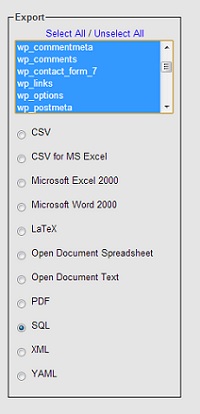
Exporting Tables in phpMyAdmin

Exporting Tables in phpMyAdmin

Backing up the WordPress Database

phpMyAdmin is the easiest way to save your entire blog, and it only takes a few steps. While plugins allow you to back up your blog manually and download it to your computer or to schedule email backups, phpMyAdmin provides a simple way to create that backup without every logging in to your WP dashboard.

  1. Log in to phpMyAdmin. Click the database name on the left.
  2. Click “Export” tab. Select any WordPress tables from the list.
  3. Click “Save as file.” Type in a database name.
  4. Choose a compression type. None saves as a larger SQL file. Bzip provides the best compression. I personally use Gzip.
  5. Click “Go.”

Your database will download to your computer via your browser.

These are the basic processes I think all WordPress users/website owners should know when it comes to phpMyAdmin and your databases. There’s much more that you can do, which I will touch on in subsequent posts.

If you have any specific questions about the database or anything I mentioned in this post, let me know in the comments. I’ll answer them directly or add them to my upcoming posts if they fit!


Dec 16

How to Use Custom Fonts on Your Website (In ALL Browsers)

If you’re a WordPress user, you may have used Cufon to make your titles appear on custom fonts. This isn’t a terrible way, but every extra plugin slows down your website. Plus, people who don’t use Cufon don’t have that option. So what can you do?

Thanks to CSS 3, you can simply use the @font-face rule to show anything you want in a specific font as long as you have the TTF.

First, you must locate the TTF file on your computer and make an EOT copy to ensure compatibility with Internet Explorer. You can use this TTF to EOT converter to get both files. Then, upload the files to your server. For my purposes, the TTF and EOT files reside in my theme directory. However, you might make a folder such as “current-theme/fonts” if you use many fonts.

Secondly, you must specif the location of the file on your server and the name you’ll use for the font in your CSS like the following.

@font-face
{
font-family: MyFont;
src: url('My-font.ttf'),
url('My-font.eot'); /* IE9 */
}

In this example,  we’re going to use the font name “MyFont” and the font files are calls “My-font.” They’re located in the same directory as the stylesheet.

The next step is to actually use the

h1
{font-family: MyFont;
}

All my h1s will use “MyFont” as the face. I can now use MyFont as the face for any element within my stylesheet. It doesn’t matter whether the viewer has the original font file on her computer.

Now, not all mobile devices support this method even when they claim to support @font-face. This is the case with IE9 on Windows Phones, the stock browser on Android 2.1 and Symbian’s Nokia browser. However, Safari on iOS4 and greater, Android 2.2 stock browser and all browsers on Android 4.0 seem to be compatible. When the browser doesn’t understand @font-face, a default font will show  — either the system default (when you haven’t specified a body font) or the default font face you use for your body.

This is still better than nothing, of course.

Let me know how this works for you!


Dec 10

Jetpack and Forms: A Quick How-To

A while back I installed JetPack on one of my blogs. There’s a lot of handy tools from the developers of WordPress in JetPack. You have access to them by default when you’re hosted but not when you host your own WordPress-powered site. One of those tools is a contact form, which you can enable without using an additional form plug-in. This is handy. I’ve been using Contact Form 7 for some time on many sites, but an older contact form plugin was the vulnerability that caused Lyrical Musings to be hacked a few months ago.

Jetpack Contact Forms

Jetpack Contact Forms

To enable forms:

  1. Click on the JetPck menu.
  2. Search for “Contact Form.”
  3. Click “Activate.”

Once forms are enabled, you’ll see a button on every post and page editor to add a form. You can easily create a form for any page with the visual editor. The default options are name, website and message. Jetpack allows you to add additional text, textarea, checkbox and radio fields, among others, with the option to set each and every form field as required. By default, the form is sent to the author of the page. However, you can specify another email address in “Notifications.” Whenever someone sends a message through the form that isn’t marked as spam, you receive an email.

Stop Spam with Jetpack’s Contact Form

By default, Jetpack forms do not have a CAPTCHA or anti-spam technology. However, you can easily emulate an anti-spam plugin that requires visitors to check a box indicating they’re human. Simply

  1. Click “Add a field”
  2. Type text such as “Click if you’re human” into the  “Label” field.
  3. Select “Checkbox.”
  4. Check “Required.”
  5. Click “Save the field.”

Spam bots won’t even be able to submit the form, which will clear up some space in your Feedback panel and your database. Good news because you can only view 20 entries in the Spam folder at a time. Deleting is tedious.

Manage Jetpack Feedback Form Submissions

Your navigation will also have a new “Feedback” menu. When you click this, you’ll see all the form submissions stored in three categories:  messages, spam and trash. Successfully-completed messages appear in the first. Any messages that you move from the “Messages” or “Spam” folders move to the trash. Any message that Jetpack isn’t sure is real winds up in the spam folder. Many of mine were in Russian or simply blank. However, a few legitimate messages did make it through. I was able to mark them as not spam, at which point I received an email like they were new.

While you can empty the trash in one fell swoop, you can’t do the same with spam. Unfortunately, dealing with spam is tiresome if you just realized that Jetpack has taken over  your forms because it uses the same shortcode as Contact Form 7. It took few a few minutes to delete the 500+ spam messages and find the handful of legitimate messages. However, it’s all cleaned up, now.

I hope this helps you better use contact forms with Jetpack!


Nov 26

Ode to UPS

ups hates c,ole

Oh UPS! Wretched UPS!
You are not the best
Not by a little, not by far
You’re barely better than railway car

First you knock
but do you wait?
Who’d have thought
this was a race

It always seems to fail
that our paths should intertwine
Your drivers like to bail
with packages of mine

When you leave a box
It gets even worse
It always winds up “lost”
Could it be a curse?

How many times now
Have I expressed rage
I don’t know how
You keep ruining my day!

So UPS, my mortal enemy
I’d appreciate if you
could deliver things to me
Or else you’ll go kaboom!


Nov 21

The State Is Super Efficient

I qualify for some state-covered services, including basic family planning (birth control, yearly PAPs, STD screening). Once a year I need to renew my application. This process entails me getting lots of letter:

  • A letter telling me the renewal is coming up
  • A letter with an application I have to send back with my updated information
  • A letter instructing me of the date for my phone interview
  • A letter telling me my benefits will end if I don’t return my paper application and answer the phone call
  • A booklet and letter informing me of my benefits (I get the same one every year, and they’ve already sent me one this year!)
  • A letter information me that I will soon receive this previous letter
  • A letter reminding me of my phone interview

Snail Mail

Piles and piles o’ mail

In the past two days, I’ve received three separate mailings. All of them stated they were sent on the 18th, the day of my phone interview, which I answered and finished in less than ten minutes. The first one said that if I didn’t make that interview, my benefits would end on December 1st. Um, how is a letter you “sent” on the day of my interview supposed to help me make my phone call? Plus, there’s no way that letter could have been sent on that day and made it here the very next day. You, my friends, are not Doc Brown.

Especially when two other letters, also with the same date, didn’t arrive until yesterday. That’s actually possible, but one of them was essentially a you-don’t-have-to-do-anything-but-don’t-forget-this-phone-call reminder. Which I think I got the point of when you sent me the first letter with the date and time less than a week ago.

I’m annoyed. Perturbed, really. Not only is it inconvenient for me to have to deal with all this mail. It’s confusing. The one letter arrived after my phone interview informing me that my benefits were ending if I didn’t participate in said interview. They’re obviously post-dating some stuff, which only makes it worse.

However, I will have received !seven! 7 seh-veeeennnnnnn different mailings in less than a month about this. The only ones I really need are the ones containing the application for me to return, the one instructing me of the phone interview time and one informing me of any changes. Hell, they can even throw the stupid booklet in there because, while I don’t need it, I’m sure they’re required to do so. That’s still half the freakin’ mail that I got.

And they wonder why we’re in debt.

Governor Walker, have you considered ending the mass murder of trees to save money? Maybe the money saved can go toward education or, you know, expanding state Medicaid. Oh, wait. Hahaha. Walker’s a douche canoe who rejected federal money to get that going. My bad.

This isn’t related to the governor at all, but I figured if I was bitching about “the man,” I’d add the most terrible “man” to the list.


Skip to toolbar